AVAYA DOCUMENTATION CENTER
Find answers to your technical questions and learn how to use our products
Administering Avaya IP Office using Manager
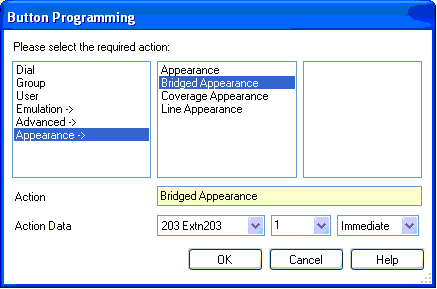
Programming Appearance Buttons
About this task
This section covers the programming of appearance buttons for users into existing system configurations.
Appearance Functions The functions Call Appearance, Bridged Appearance, Coverage and Line Appearance are collectively known as "appearance functions". For full details of their operation and usage refer to the Appearance Button Operation section. The following restrictions must be observed for the correct operation of phones.
Appearance functions programmed to buttons without suitable status lamps or icons are treated as disabled. These buttons are enabled when the user logs in on a phone with suitable buttons in those positions.
Line appearance buttons require line ID numbers to have been assigned, see Programming Line Appearance Numbers. The use of line appearances to lines where incoming calls are routed using DID (DDI) is not recommended.
How many buttons are allowed? The supported limits depend on the type of system. They are 10 for IP500 V2 systems, 20 for Server Edition and 40 for Server Edition Select. The limits are applied as follows:
Number of bridged appearances to the same call appearance.
Number of line appearances to the same line.
Number of call coverage appearances of the same covered user.
Programming Appearance Buttons Using Manager
If only button programming changes are required, the configuration changes can be merged back to the system without requiring a reboot.
Procedure
- Select Button Programming.
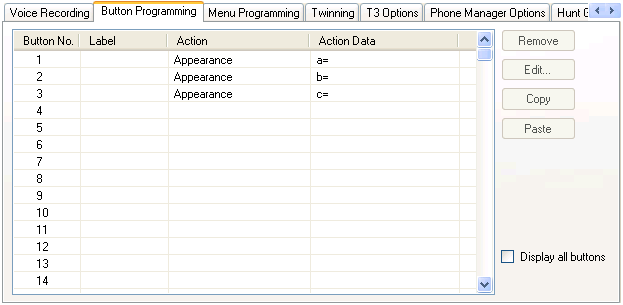
The number of buttons displayed is based on the phone associated with the user when the configuration was loaded from the system. This can be overridden by selecting Display all buttons.
- Click the ... button.