

AVAYA DOCUMENTATION CENTER
Find answers to your technical questions and learn how to use our products
Administering Avaya IP Office using Manager
Standard Mode Configuration Mode
When Manager is in configuration mode, the screen elements shown are available. Some of these elements can be customized, moved and hidden.
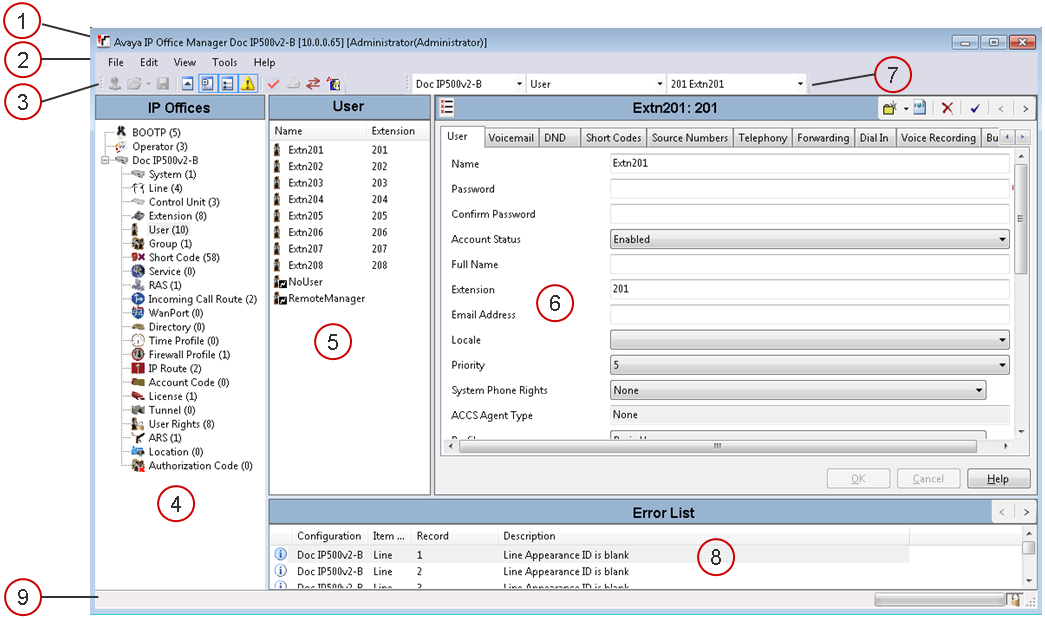
Manager Configuration Mode Screen Elements
Description |
|
|---|---|
1. |
Title Bar In addition to the application name, when configuration settings are loaded from a system, the title bar displays the user name used to load the settings and the operator view applied. See Title Bar. |
2. |
Menu Bar The options available with the drop down menus provided here change according to whether Manager has a set of configuration or security settings loaded or not. See Menu Bar Commands. |
3. |
Main Toolbar This toolbar provides icon shortcuts to the most frequently required configuration setting actions. See Toolbars. |
4. |
Navigation Pane This pane shows icons for the different types of record that the configuration can contain. Each type is followed by the number of records of that type already in the configuration. Selecting an icon displays the matching records in the group pane and navigation toolbar. See The Navigation Toolbar. |
5. |
Group Pane This pane lists all the records that match the type selected in the navigation pane or navigation toolbar. The list can be sorted by clicking on column heading. Selecting a record in this pane displays its details in the details pane. See The Group Pane. |
6. |
Details Pane This pane shows the configuration settings for a particular record within the configuration. The record is selected using the navigation toolbar or using the navigation pane and group pane. See The Details Pane. |
7. |
Navigation Toolbar This toolbar provides a set of drop downs which can be used to navigate to particular records in the configuration settings. The selected options in the navigation pane, the group pane and the details pane are synchronized with the navigation toolbar and vice versa. This toolbar is particularly useful if you want to work with the group pane and or navigation pane hidden in order to maximize the display space for the details pane. See The Navigation Toolbar. |
8. |
Error Pane This pane shows errors and warnings about the configuration settings. Selecting an item here loads the corresponding record into the details pane. See The Error Pane. |
9. |
Status Bar This bar display messages about communications between Manager and systems. It also displays the security level of the communications by the use of a padlock icon. See The Status Bar. |