

AVAYA DOCUMENTATION CENTER
Find answers to your technical questions and learn how to use our products
Administering Avaya IP Office with Web Manager
Ring Delay
Ring delay can be applied to appearance buttons. This option can be used with all types of appearance buttons and can be selected separately for each appearance button a user has. Using ring delay does not affect the buttons visual alerting through the display and display icons or button lamps.
Ring delay is typically used with line appearance buttons for lines which a user wants to monitor but does not normally answer. However ring delay can be applied to any type of appearance button.
The selectable ring delay options for an appearance button are listed below. The option is selected as part of the normal button programming process.
Option |
Description |
|---|---|
Immediate |
Provide audible alerting as per normal system operation. |
Delayed Ring |
Only provide audible alerting after the system ring delay or, if set, the individual user's ring delay. |
No Ring |
Do not provide any audible alerting. |
There are two possible sources for the delay used when delayed ringing is selected for a button.
: Default = Blank (Use system setting), Range 1 to 98 seconds. This setting can be used to override the system setting. It allows a different ring delay to be set for each user.
: Default = 5 seconds, Range 1 to 98 seconds. This is the setting used for all users unless a specific value is set for an individual user.
Notes
Calls That Ignore Ring Delay - Ring delay is not applied to hold recall calls, park recall calls, transfer return calls, voicemail ringback calls and automatic callback calls. For phones using Internal Twinning, ring delay settings are not applied to calls alerting at a secondary twinned extension (except appearance buttons set to No Ring which are not twinned).
Auto Connect Calls - Ring delay is applied to these calls before auto-connection. This does not apply to page calls.
Multiple Alerting Buttons - Where a call is presented on more than one button on a user's phone, see Multiple Alerting Buttons, the shortest delay will be applied for all the alerting buttons. For example, if one of the alerting buttons is set to Immediate, that will override any alerting button set to Delayed Ring. Similarly if one of the alerting buttons is set to No Ring, it will be overridden if the other alerting button is set to Immediate or Delayed Ring.
Line Appearance Buttons - Calls routed to a user that could potentially be presented on both a call appearance button and a line appearance button are only presented on the line appearance button. In this scenario, the ring delay settings used is that of the first free call appearance button.
Delay on Analog Lines - Analog lines set to Loop Start ICLID already delay ringing whilst the system waits for the full ICLID in order to resolve incoming call routing. In this scenario the ring delay operates in parallel to the routing delay.
Ring Delay and Ringing Line Preference - Appearance buttons can be set to Delayed Ring or No Ring. However, ringing line preference is still applied to alerting buttons even if set to Delayed Ring or No Ring.
The user's Delayed Ring Preference setting is used to determine whether ringing line preference is used with or ignores buttons that are alerting but have Delayed Ring or No Ring set.
Ring Delay Example 1
In this example, the user has a line appearance button set but configured to no ring.
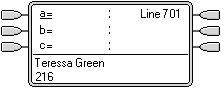 |
Phone Idle The phone is idle. The current selected button has been determined by Idle Line Preference as the first available call appearance button. This is shown by the _ underscore next to that button. |
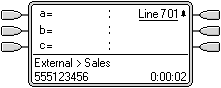 |
Incoming Call Alerting on the Line An incoming call arrives on the line and begin to alert somewhere on the system. The user's line appearance button shows this visually but doesn't ring audibly. Ringing line preference would makes the line appearance the user's currently selected button and therefore they would answer the line if they went off-hook. |