

AVAYA DOCUMENTATION CENTER
Find answers to your technical questions and learn how to use our products
Administering Avaya IP Office with Web Manager
Overriding a Time Profile
You can use the setting to manually override a time profile. The override settings allow you to mix timed and manual settings.
The override options are as follows:
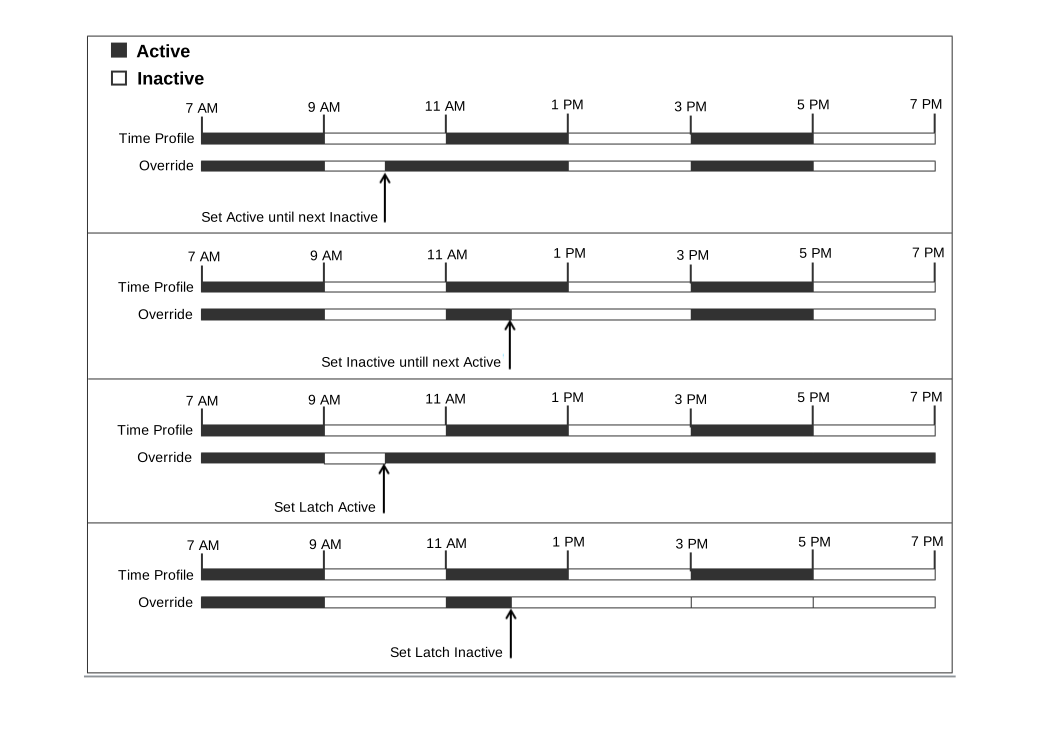
Set Time Profile Active Until Next Timed Inactive
Use for time profiles with multiple intervals. Make the time profile active until the next inactive interval.
Set Time Profile Inactive Until Next Timed Active
Use for time profiles with multiple intervals. Make the time profile inactive until the next active interval.
Set Time Profile Latch Active
Set the time profile to active. Timed inactive periods are overridden and remain active.
Set Time Profile Latch Inactive
Set the time profile to inactive. Timed active periods are overridden and remain active.
The illustration below provides an example of each override setting.
A time profile can be overridden using the following methods.
Using the Override settings on the Time Profile configuration page.
Configure short codes for the time profile. See the description for the “Set Time Profile” short code.
Configure the Time Profile button action for the time profile. See the description for the “Time Profile” button action.