

Configuring call queue notifications

Last Updated : Apr 07, 2023 |

About this task

Manage the notifications Avaya Cloud Office™ sends to managers and specified emails. You can select email, SMS, or both for notifications about the following:

  • Voicemail Messages

  • Received Faxes

  • Missed Calls

  • Received Text Messages

Procedure

  1. Click Phone System > Groups > Call Queues.
  2. Click the call queue to configure.
  3. Click Voicemail & Notifications > Settings.
  4. Under Notifications, click Edit.
  5. On the Notifications window, select or clear the check boxes as required.
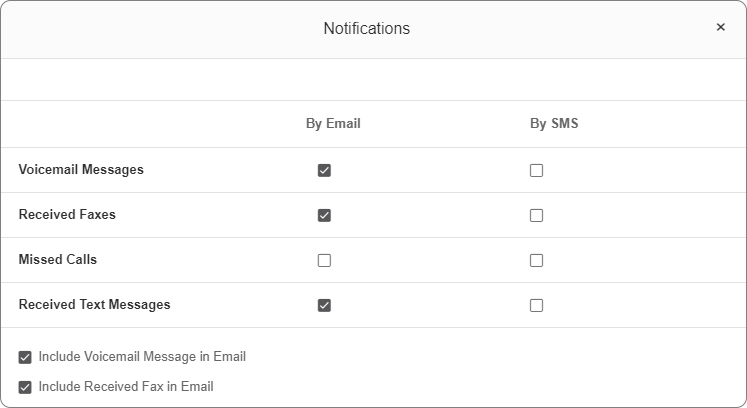

    the Notifications window screenshot


  6. Under Send Notifications to, select one of the following:
    • Managers and Specified Emails

    • Specified Emails Only

  7. In the Email field, type the email of the recipient.
  8. Select the carrier, and type the phone number.

    If your carrier is not listed, contact your carrier to learn the email address by which you can receive text messages, and enter it into the Phone Number field.

    For example, yournumber@yourcarrier.com.

  9. To add the member to the recipients list, click Add.
  10. Optional To add more members to the recipients list, repeat steps 7 to 9.
  11. Click Save.