AVAYA DOCUMENTATION CENTER
Find answers to your technical questions and learn how to use our products
Administering Avaya Cloud Office Service Web
User settings
As an administrator, you can change user settings and manage user extensions for users. Users can also configure the same settings by logging into the My Extension portal with their Avaya Cloud Office™ credentials.
Note:
Administrators can also create and apply templates for user settings and call handling preferences to configure multiple users simultaneously.
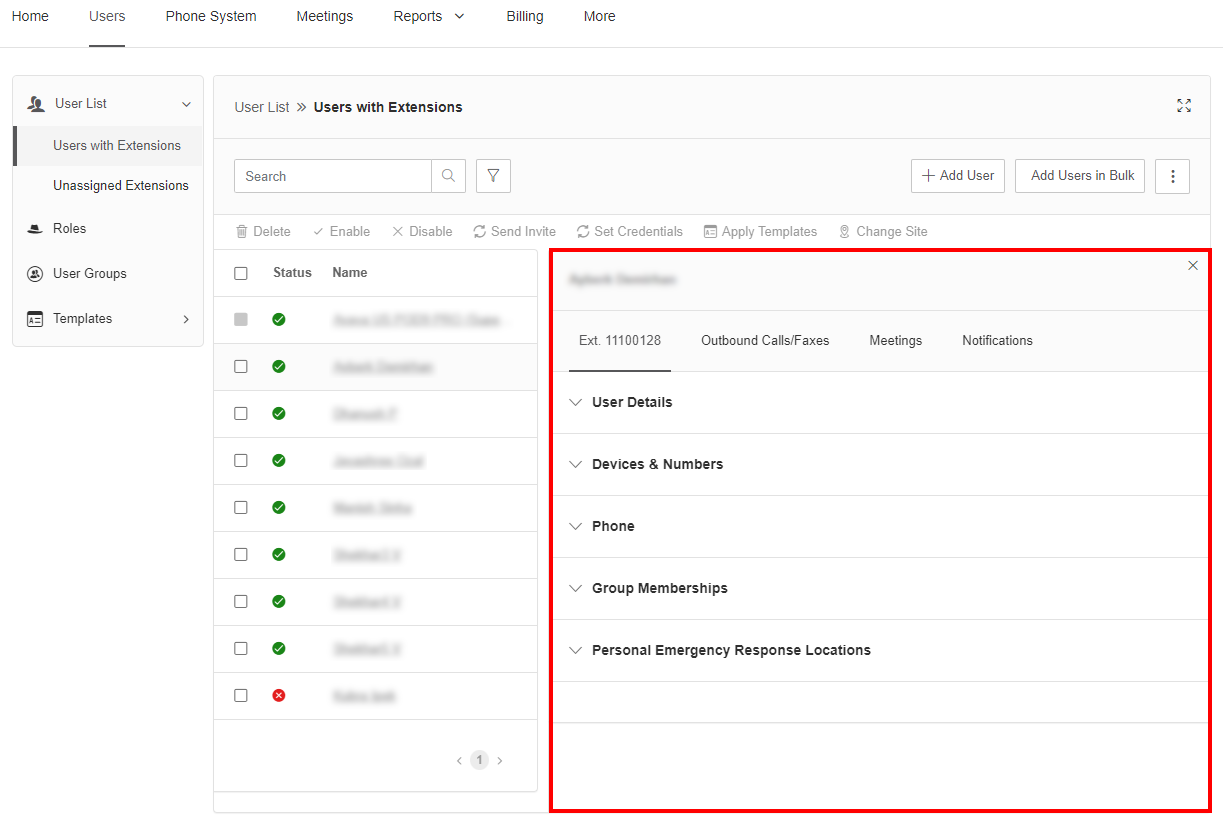
After clicking a user from the Users with Extensions list, Admin Portal displays a side pane with various user settings. By default, Admin Portal displays the following extension settings:
User Details: To configure user details, such as name, job title, and extension number.
Devices & Numbers: To manage user phones and phone numbers. You can also manage phones and phone numbers from the Phone System tab of Admin Portal.
Phone: To configure incoming call and voicemail settings for the user.
Group Memberships: To manage the group memberships of the user.
Personal Emergency Response Locations: To manage the emergency response locations of the user.
You can access more settings on other tabs. For example, on the Outbound Calls/Faxes tab, Admin Portal displays the following settings:
Caller ID: To set the caller ID that is displayed when the user makes a call.
Fax Settings: To configure the general fax settings for the user.
On the Meetings tab, you can configure meeting settings, such as the video and audio settings, for that user. You can also allow other users to schedule meetings on behalf of that user.
On the Notifications tab, you can configure the voicemail, fax, text message, and missed call notifications that the user receives. You can also set whether the user receives these notifications by email, by SMS, or both.