AVAYA DOCUMENTATION CENTER
Find answers to your technical questions and learn how to use our products
Administering Avaya Oceana®
Creating variables using Avaya Control Manager
About this task
Important:
Skip this procedure if you have configured the Communication Manager variables using the Communication Manager System Access Terminal (SAT) interface.
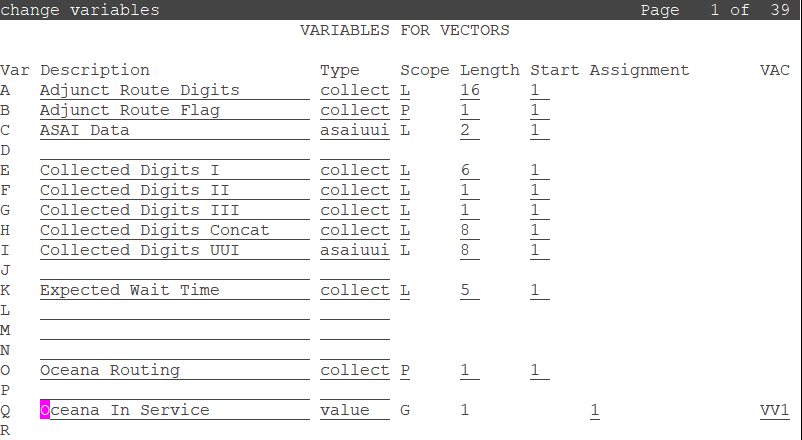
Communication Manager vectors use variables to improve efficiency. Different types of variables are available to meet different types of call processing needs. Vector variables can be added to consider location, messaging, and adjunct routing vector steps. Based on the variable type, variables can use call-specific data or fixed values that are identical for all calls. In either case, an administered variable can be reused in many vectors.
Avaya Oceana® has a number of initial vectors:
Fallback Vector - Automatically routes calls to Elite when Avaya Oceana® is down
Ingress Vector - Initiates the Adjunct Route
Treatment Vector - Provides treatments for calls that route to Avaya Oceana®
Routing Vector - Collects the digits set by the Adjunct Route application.
These digits contain the Agent ID.
RONA Vector - To handle Voice Redirect On No Answer (RONA) scenarios
Coverage Vector - To route callers to a voice mail mailbox
Transfer to Service Vector - To initiate the Adjunct Route
These vectors require the following variables:
Routing Vector requires a variable used to collect Agent ID.
Avaya Oceana® vectors require a Persistent variable.
This variable is used to differentiate between the types of call ingress: (1) Elite-anchored / Adjunct Route path or (2) the Web Voice / Avaya Breeze® platform-anchored path.
Procedure
Example