

AVAYA DOCUMENTATION CENTER
Find answers to your technical questions and learn how to use our products
Administering Avaya Oceana®
Cleanup and purging overview
Use the procedures in this chapter to set up the cleanup rules and scheduled tasks to archive closed contacts from the Omnichannel database.
Avaya Oceana® includes the following two databases for multimedia contacts:
Omnichannel database
OFFLINE database
The Omnichannel database contains all active contacts. The OFFLINE database maintains an archive of contacts from the Omnichannel database.
A background OFFLINE synchronization task updates the OFFLINE database. To create rules and schedules and clean up the Omnichannel database, remove closed contacts from it and leave them in the OFFLINE database. This keeps the Omnichannel database small and efficient, while also allowing for historical reporting across all the contacts in both the active and the OFFLINE databases.
You can configure the OFFLINE database to purge contacts over a specific age. You specify the age at which Avaya Oceana® purges closed contacts. Avaya Oceana® runs a purge task every day and purges contacts that meet the age criteria. You cannot recover a purged contact other than restore a backed-up OFFLINE database.
Important:
To view the purge job details, check the Oceana Data Management logs.
Database sizing and limits
The Omnichannel database supports a maximum of 7,000,000 contacts. To stay below this limit, you must regularly cleanup contacts from the Omnichannel database. The maximum size of the OFFLINE database is 70% of the database drive size. For example, if the Omnichannel database drive size is 200 GB, then the maximum size of the OFFLINE database is 140 GB. If the OFFLINE database fills up, you can either increase the Omnichannel database disk space or change the OFFLINE database purge interval.
To prevent service interruption, updates to the OFFLINE database stop when the database drive size is 70% full, and the OFFLINE database has less than 5% free space. Updates continue after you purge contacts or if space is freed or added to the drive.
You can check the current sizes of the databases in the Oceana Data Management tool.
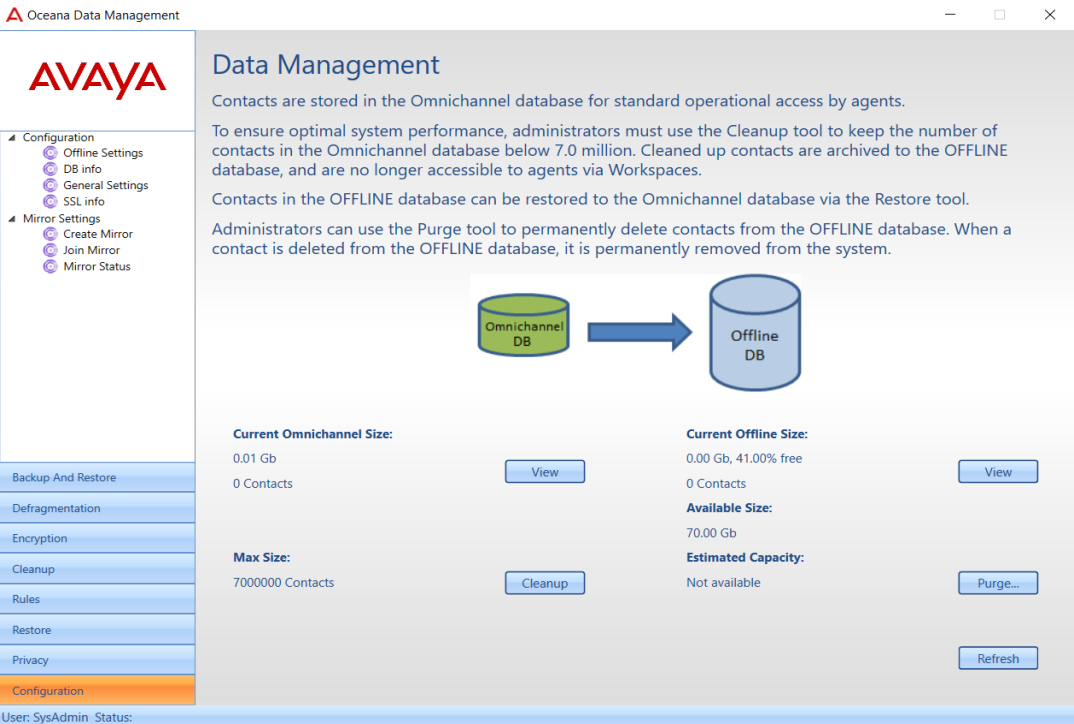
Current OFFLINE Size shows the used space, the number of contacts, and the percentage of free space in the OFFLINE database. Here, the value of free size is calculated as the following:
Memory blocks are allocated dynamically when the OFFLINE database size increases. For example, when data fills in the first allocated memory block, the second memory block is allocated, and so on. The value of free size is measured in the percentage of free size of each allocated memory block and not the total free size on disk available for the OFFLINE database.
When the value of free space is close to null, it means that the currently allocated memory block is almost filled by data, a new memory block will be allocated soon if required, and there is enough memory on the disk. The value of free size is set to null after completion of the Truncate operation for the OFFLINE database.
When the current size of the OFFLINE database grows to 75% of the maximum size, Avaya Oceana® logs this event to the log file. When the current size of the OFFLINE database grows above 90% of the maximum size, Avaya Oceana® logs events to the event viewer. If the current size of the OFFLINE database exceeds 95%, Avaya Oceana® stops automatically synchronizing contacts from the Omnichannel database, and prevents you from running manual or scheduled cleanups.
You can configure purging of contacts from the OFFLINE database to reduce the database size. Specify the age at which Avaya Oceana® purges closed contacts. Avaya Oceana® runs a purge task every day and purges contacts that meet the age criteria. You cannot recover a purged contact other than restore a backed-up OFFLINE database.
Cleanup rules
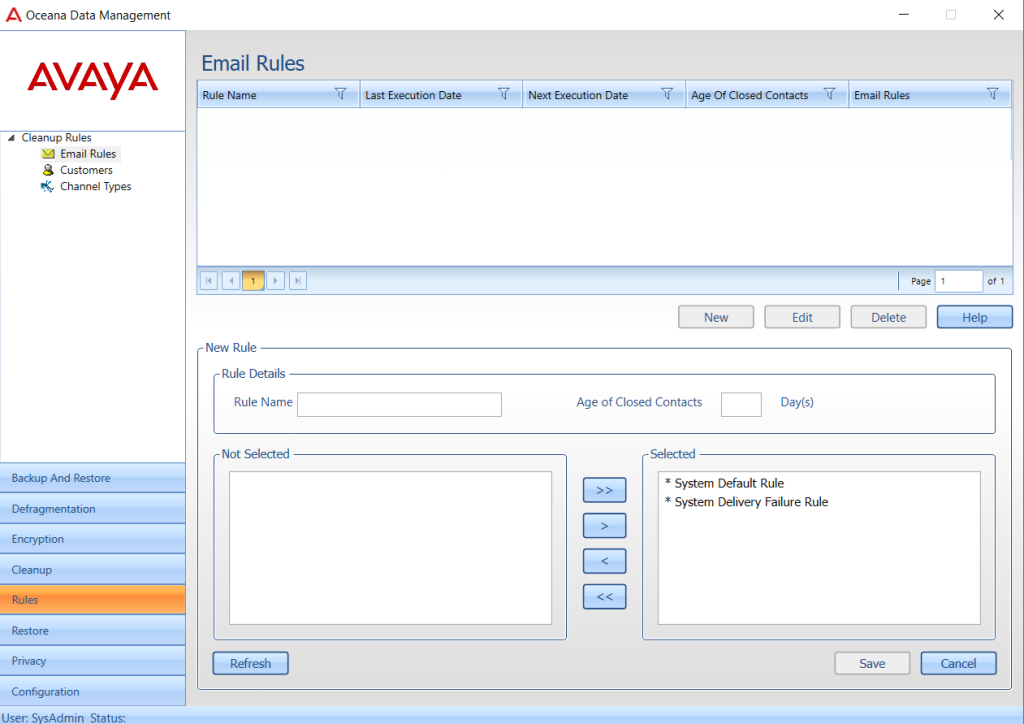
You create a cleanup rule to select contacts for a scheduled cleanup task. Cleanup rules apply to the Omnichannel database only. Cleanup rules select contacts based on the number of days for which they remain in a Closed state, and any one of the following criteria:
Email rule
Customer
Channel type
In addition, there are three system cleanup rules:
Customers with no contacts: This rule clears customer records with no contacts, which can occur on systems upgraded from an earlier release.
It deletes records of voice customers who do not have any contacts in the Avaya Oceana® database.
All contacts more than 1 year old: This rule clears all contacts that are more than one year old.
All contacts more than 5 years old: This rule clears all contacts that are more than five years old.
You cannot modify these rules. They allow you to clear customer records with no contacts that occur in exceptional circumstances. Run scheduled tasks with these rules periodically to clear unwanted customer records from the active database.
Each scheduled cleanup task uses a rule, so you must create a rule before you can create a scheduled task.
Important:
To avoid clearing a large number of customer records at once, configure cleanup rules as soon as the Omnichannel database is operational. Clearing a large number of customer records takes a long time and consumes significant personal computer resources. Run scheduled cleanup tasks on a regular basis to remove a small number of contacts each time.
Scheduled tasks
You create scheduled cleanup tasks to clear contacts from the Omnichannel database. A scheduled task uses a single cleanup rule to select the contacts to clear. The scheduled task checks whether each contact matching the rule is archived in the OFFLINE database. If the contact is archived, the task clears it from the Omnichannel database. If the contact is not archived, the cleanup task copies the contact to the OFFLINE database and then clears it from the Omnichannel database.
The following figure shows the interface that you use to create scheduled cleanups of the Omnichannel database.
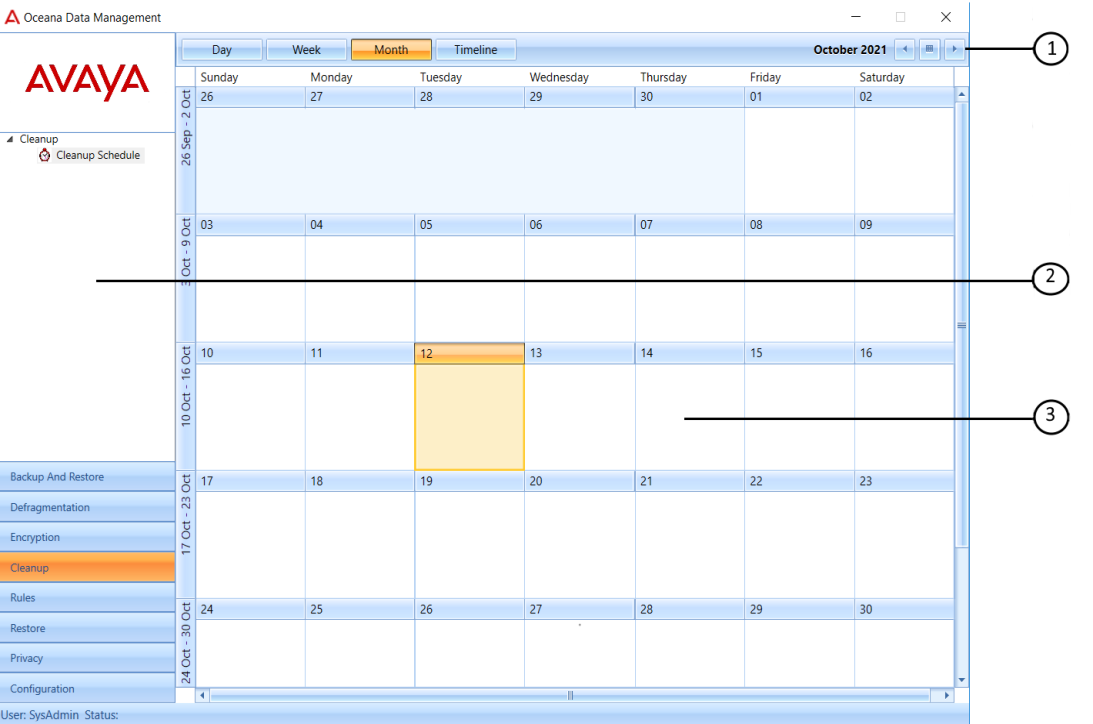
The illustrated interface shows three work areas:
1 |
Top Bar |
2 |
Navigation Pane |
3 |
Scheduled Task Calendar |
Restoring contacts
You can restore the contacts cleared by a scheduled cleanup task. For more information about restoring contacts, see Deploying Avaya Oceana®.
Use of Oceana Data Viewer statistics to identify data to clean up
You can use the statistics of Oceana Data Viewer to identify data to clean up. For information about Oceana Data Viewer, see Deploying Avaya Oceana®.
Purging of OFFLINE Database
You can purge contacts from the OFFLINE database to reduce the database size. You cannot recover purged contacts, so it is important to back up the OFFLINE database before a purge.