

AVAYA DOCUMENTATION CENTER
Find answers to your technical questions and learn how to use our products
Administering Avaya Aura® Device Services
Adding a new enterprise LDAP server
About this task
Use this procedure to add a new LDAP server to Avaya Aura® Device Services. After you have added a server, you cannot modify the server URL or remove the LDAP data source.
Before you begin
If you are planning to use multiple authentication domains, configure the UID mapping attributes as specified in Configuring the UID mapping attributes when using multiple authentication domains.
Procedure
- On the Avaya Aura® Device Services web administration portal, navigate to .
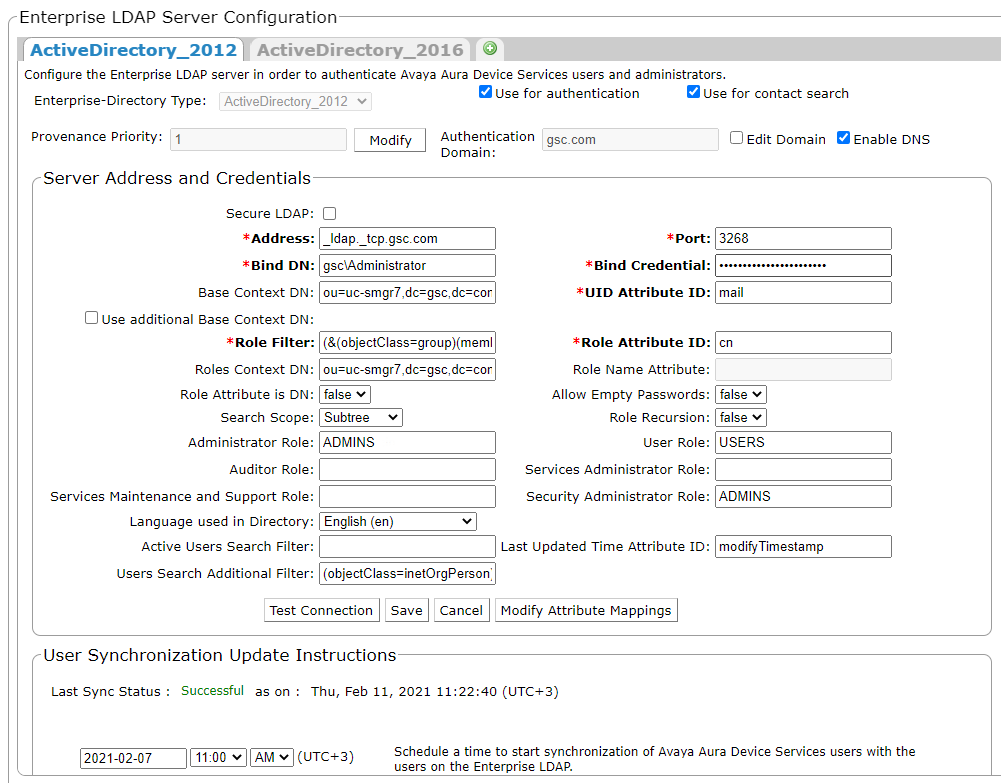
Avaya Aura® Device Services displays the Enterprise LDAP Server Configuration page.
Next Steps
For each LDAP server configured on Avaya Aura® Device Services, set up a provenance priority order.