

AVAYA DOCUMENTATION CENTER
Find answers to your technical questions and learn how to use our products
Administering Avaya Aura® Device Services
Configuring enhanced search options
About this task
The enhanced search feature enables Avaya Workplace Client users to search contacts by name, location, or department. Use this procedure to configure the department search capability in the Avaya Aura® Device Services web administration portal.
Before you begin
If you use Avaya Aura® Device Services in an Avaya Aura® environment, on System Manager, configure the mapping from the LDAP directory server to System Manager for the department and city attributes. For example:
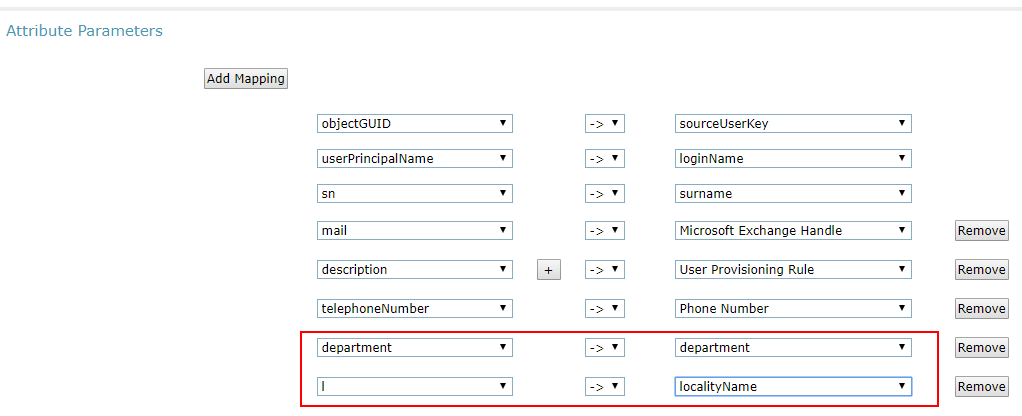
For more information, see
Directory synchronization
in Administering Avaya Aura® System Manager.This requirement is not applicable if you use Avaya Aura® Device Services in an environment without Avaya Aura®.
Ensure that the mapping for the Department and City attributes is configured on each Avaya Aura® Device Services LDAP directory server. For example:
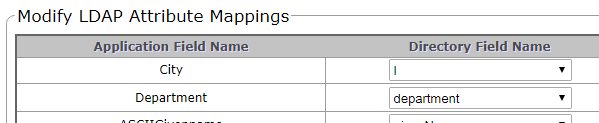
For more information, see Modifying enterprise directory attribute mappings.
Procedure
- On the Avaya Aura® Device Services web administration portal, go to .
- In the Department field, select one of the following options:
startsWith: Searches for department names that start with the search text entered. The relevant users from the departments are displayed.
contains: Searches for department names that contain the search text entered. The relevant users from the department are displayed.
- Click Save.