

AVAYA DOCUMENTATION CENTER
Find answers to your technical questions and learn how to use our products
Administering IP Office Voicemail Pro
Menu action
This action assists you to specify DTMF tones for which you want to create connections to following actions. For example, a menu can be created that gives callers a choice of transfer locations.
Each  Menu action supports a maximum of 15 active touch tone entries.
Procedure
- Click the
 Basic Actions icon.
 - Select Menu.
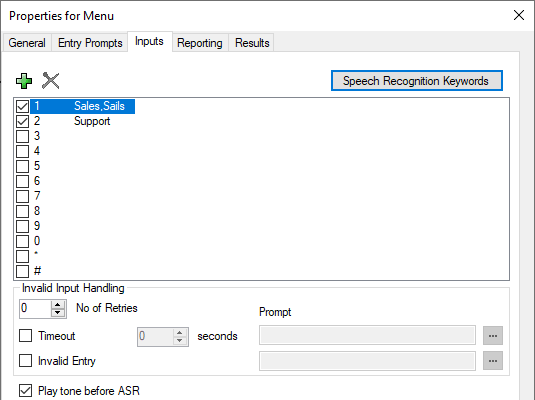
- For Menu actions, the Specific tab is replaced with the Touch Tones tab.
Setting
Description
0-9, *, #
Use the dialing digits check boxes to indicate the DTMF tones for which connections are required.
The
 Add icon can be used to add additional digits and digit strings. If a sequence is added, check the associated box before you click OK. The sequence must be unique. For example, if 5 is selected, no other sequence that begins with 5 can be used. The
  Delete icon can be used to remove a digit or digit string.
? = Any Digit: The ? character can be used to represent any digit (except * and #). For example, 123??? can be used for any six digit string starting with 123.
$ = Any Sequence of Digits: The $ character can be used to match any sequence of digits for which there is no other match. Key press entry is ended either by the caller pressing # or 5 seconds after the last digit dialed.
F = For Fax Calls: The F letter can be used to automatically detect any incoming fax calls. Once detected, the calls can be routed to another number. See Routing Fax Calls Using a Menu Action .
Speech Recognition Keywords
This option is available of subscription systems with Google Speech selected as their TTS (see Enabling Google Speech TTS). Selecting a digit and then clicking this control allows entry of keywords to be used for automatic speech recognition.
The keywords must be unique. The same word cannot be used for another key.
Up to 3 keywords are supported per key, separated by commas. Note that using more keywords in total reduces the chances of a match.
Avoid using proper names. These are less likely to be matched as they may not match existing words in the speech recognition dictionaries used by Google.
Encourage matches by ensuring that the keywords are part of the announcements played to callers. For example,
Say whether you want Sales or Support
rather thanSay what department you want
.
No of Retries
This option assists you to specify the number of retries a caller can make if they make an invalid entry or if the timeout occurs.
Timeout
If selected, the voicemail server will wait for the specified number of seconds for a valid digit. In case of a timeout, Voicemail Pro will either wait for a retry or if the No of Retries has been reach, it will follow the Timeout result connection within the call flow.
Invalid Entry
If selected, if the caller enters an invalid digit, the voicemail server will either wait for a retry or if the No of Retries has been reach, it will follow the Invalid result connection within the call flow.
Prompt
You can associate a prompt with the Timeout and Invalid Entry options. If a prompt is specified, before a retry the prompt is played before a retry. Use the … to access the Wave Editor (see Using the Wave Editor).
Play tone before ASR
If enabled, the caller is played a tone when automatic speech recognition match occurs.
Result
The action can have the following results which can then be connected to further actions:
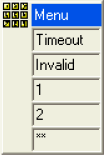
Timeout: This result is used to connect to a following call flow action if the caller does not make an entry within the specified number of seconds on the last retry.
This connection is followed immediately the caller hangs up if the Start action option Complete Sequence sequence has been selected.
Invalid: This result is used to connect to a following call flow action if the caller makes an invalid entry on the last retry.
Additional result are shown for each selected dialing digit or digit string.
Example
For examples of the action being used in a call flow, see: