

AVAYA DOCUMENTATION CENTER
Find answers to your technical questions and learn how to use our products
Administering IP Office Voicemail Pro
Test Variable Action
This action allows you to route calls based on matching the value of a call variable to a specified value.
The variable $REG[name] can be used to access the current value of a user variable. For example, $REG[UV1] accessing the value of a user variable called UV1. Using the method above can be used to save this as a $CP value. For example, CP2:$REG[UV1].
Procedure
- Click the
 Condition Actions icon.
 - Select
 Test Variable.
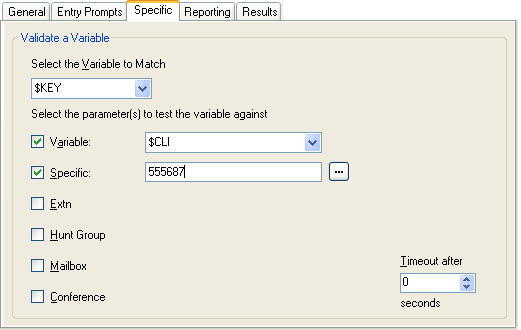
 - Select the Specific tab. Set the options as required.
Setting
Description
Select the variable to match
This drop-down list is used to select which Voicemail Pro call variable should be checked for a match.
Variables not available in the drop-down list may be used by saving the current value of the variable to one of the
$CPvalues. This can be done using a Generic action set to Set CPxx Value. For exampleCP1:$MONTHsaves the value of$MONTHto$CP1.The variable
$REG[name]can be used to access the current value of a user variable. For example,$REG[UV1]accessing the value of a user variable calledUV1. Using the method above can be used to save this as a$CPvalue. For example,CP2:$REG[UV1].
Timeout after
The timeout value is used only if
$KEYis selected as the variable to match. In this case, if the Voicemail Pro will wait for the specified timeout period for the caller to dial a new value of$KEY. To enter a value without waiting for the timeout to expire the user can be prompted to enter a value and then press #.Setting
Description
Select the parameter(s) to test the variable against
Select the types of values that should be checked for a match and enter the values. If several options are selected, the Voicemail Pro checks for a match starting from the top and working down until a match occurs.
Variable
Check for a match against the value of another selected call variable . Type the required value directly or use the browse button to select the text that should be used including using the value of a call variable .
Specific
Check for a match against the value entered in the adjacent field.
Extn
Check for a match against valid extensions on the IP Office.
Hunt Group
Check for a match against hunt group extension numbers.
Mailbox
Check for a match against mailboxes.
Conference
Check for a match against system meet-me conference ID numbers.
Result
This action will have results for connection to following actions in the call flow based on the selected options on its Specific tab plus a No Match and Timeout result:
No Match: This result is used if no match is found.
Timeout: This result is used when
$KEYis specified as the variable to match and no match occurs within the specified timeout period.This connection is followed immediately the caller hangs up if the Start action option Complete Sequence has been selected.