

AVAYA DOCUMENTATION CENTER
Find answers to your technical questions and learn how to use our products
Administering IP Office Voicemail Pro
'General' System Preferences
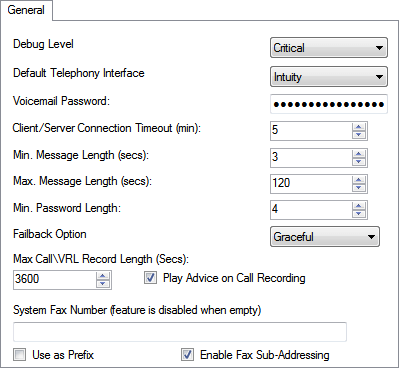
This set of preferences cover general options for the voicemail server operation. For servers other then the central/primary voicemail server, only the Debug Level can be adjusted.
Setting |
Description |
|---|---|
Debug Level |
Default = Information (Critical for Unified Communications Module) Use this field to set the level of information that the server should output for logging, if required. This setting can also be set through the server's web control menu . |
Client/Server Connection Timeout |
Default = 5 minutes. Shown for the Voicemail Pro client only. As the server only supports one connected client at a time, this field sets a timeout period for an inactive client to be automatically logged out. |
Setting |
Description |
|---|---|
Default Telephony Interface |
Default = Intuity: Use this field to select the mailbox operation mode for all mailboxes. The available options are IP Office mode and Intuity emulation mode. |
Voicemail Password |
Default = Blank: The password set here must match the Voicemail Password configured in the IP Office security settings.
|
Min. Message Length |
Default = 0 seconds (in IP Office mode) and 3 seconds (in Intuity mode). Use this field to set a restriction on the minimum length for a message. The minimum value that you can set is 0 seconds, and the maximum value is 10 seconds. Messages shorter than the minimum length are deleted immediately. In IP Office mode, this field is unavailable. |
Max. Message Length |
Default = 120 seconds. Use this field to set a restriction on the maximum length for a message. The maximum value that you can set is 3600 seconds (60 minutes). |
Failback Option |
Default = Graceful Use this field to configure the mode of failback operation in a voicemail system with a backup voicemail server. Failback is only considered if the preferred and back-up voicemail servers have started their synchronization operation (SMTP exchange of messages, etc).
|
Max. Call\VRL Record Length |
Default = 3600 seconds. Use this field to set a restriction on the maximum recording length for the calls. The maximum value is 18000 seconds (300 minutes). The minimum value is either 3 seconds (IP Office mode) or 5 seconds (Intuity mode). |
Play Advice on Call Recording |
Default = On Use this check box to set whether to play an advice warning to the callers when their calls start getting recorded. It is a legal requirement in some countries to inform the callers before recording their calls, and so confirm before you clear this check box. |
System Fax Number |
Default = Blank Use this field to set the number of the fax machine to which all incoming faxes are to be directed. If you are using a fax board, the number that you enter must match the extension number that is connected to the fax board of the fax server computer. For details, see Setting the System Fax Number.
|
Use as a Prefix |
If your fax system does not use prefix addressing, leave this box unchecked. For this feature to work, you also need to set up a short code. |
Enable Fax Sub-Addressing |
Most fax servers perform fax forwarding based on DTMF signaling received with the fax call. Select the Enable Fax Sub-Addressing check box so that the DTMF signal is passed to the fax server after the call has been answered so that the fax can be forwarded to the e-mail address of the intended recipient. |