

AVAYA DOCUMENTATION CENTER
Find answers to your technical questions and learn how to use our products
Administering IP Office Voicemail Pro
Clock Action
This action plays the current time on the voicemail server computer. With International Time Zone functionality, when you invoke a Clock Action configured on a voicemail server, the Clock Action reports the time based on the time zone where you are located and not the time where the voicemail server is located.
About this task
Procedure
- Click the
 Miscellaneous Actions icon.
 - Select
 Clock.
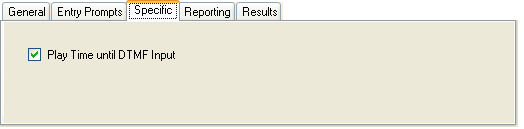
 - Select the Specific tab. Set the options as required.
Setting
Description
Play Time Until DTMF Input
If not selected the time is played to the caller once. If selected the time is repeated until the caller presses a DTMF key or hangs up.
Result
This action has the following result which can be connected to a further action:
Next: Route the call to a following action in the call flow. This connection can be followed even after the caller has hung up if the Start action option Complete Sequence has been selected.