

AVAYA DOCUMENTATION CENTER
Find answers to your technical questions and learn how to use our products
Administering IP Office Voicemail Pro
Post Dial Action
This action can connect another extension to a specified call flow start point or to play a recording to that extension.
Procedure
- Click the
 Miscellaneous Actions icon.
 - Select
 Post Dial.
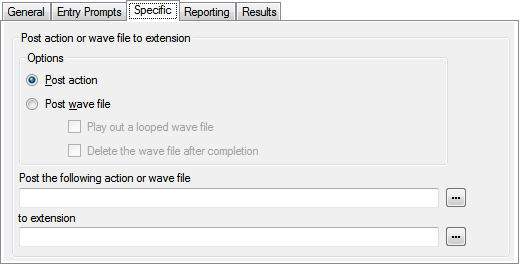
 - Select the Specific tab. Set the options as required.
Option
Description
Post action
Select this option if you want to connect a target extension to a selected call flow.
Post wave file
Select this option if you want the target extension to be played a selected wav file. When Post wave file is selected there are two options which can be selected.
Play out a looped wave file: The wav file will be played in a continuous loop.
Delete the wave file after completion: The wav file will be deleted after it has been played.
Post the following action or wave file
Enter the name of the required start point or use the browse button to select the start point. To play a recording, enter hello.wav (substitute the appropriate file path and file name for the .wav file you want played).
To extension
Enter or select the extension to which the call should be made. The voicemail server will attempt to make the call every 5 minutes for the next hour until successful. The Post Dial action can be used to page a .wav file to an extension number, including group extension numbers. This is done by entering PAGE: followed by the target extension number. In this case the wav file will not loop if selected.
Result
This action has the following result which can be connected to a further action:
Next: Route the call to a following action in the call flow. This connection can be followed even after the caller has hung up if the Start action option Complete Sequence has been selected.