

AVAYA DOCUMENTATION CENTER
Find answers to your technical questions and learn how to use our products
Administering IP Office Voicemail Pro
Assisted Transfer Action
The Assisted Transfer action transfers the caller to the specified number which can include IP Office short codes. The caller hears either music on hold if installed. The transfer is not blind, if the call receives busy or no answer then it returns to follow the appropriate connection.
This action is intended primarily for use with internal transfer destinations for which the IP Office can track the status of the call. If used with external transfer destinations, the ability to detect whether the call has been answered or not depends on the signaling provided. For example if you transfer the call using an analog line, IP Office records the status of the call as answered.
On systems with IP trunks and extensions, especially those that are within an IP Office Small Community Network, there may be a short delay to connect the speech path when an assisted transfer is answered.
About this task
Procedure
- Click the
 Telephony Actions icon.
 - Select
 Assisted Transfer.
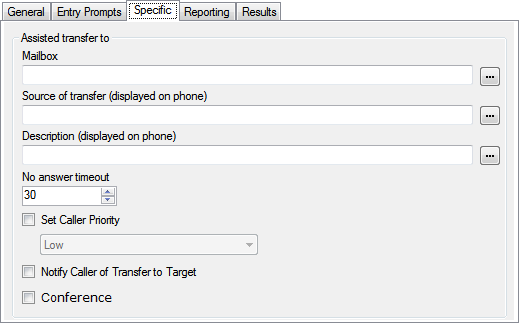
 - Select the Specific tab. Set the options as required.
Setting
Description
Mailbox
Select or enter the name of the target mailbox. If ? is entered, voicemail will prompt callers to enter the mailbox number required.
Clicking on the … browse button allows selection of the target mailbox from a drop-down list of either Start point or module, System defined variables or Mailbox. The options vary depending on the action and field.
Source of transfer
The number to display on the destination telephone if internal. Type the required text directly or use the browse button to select the text that should be used including using the value of a call variable.
Description
The text description to display on the destination telephone if internal. Type the required text directly or use the browse button to select the text that should be used including using the value of a call variable.
No answer timeout
Select how long the voicemail server should wait for an answer before following the No Answer result connection.
Set Caller Priority
If selected, the caller's priority can then be set to Low, Medium or High. A call variable set to 1, 2 or 3 can also be used to set Low, Medium or High priority respectively.
When the system presents calls to a hunt group on the IP Office, IP Office uses the call priorities followed by the call waiting times to order the calls in the queue. By default, internal callers are assigned Low priority while the priority of external callers is set by the IP Office Incoming Call Route used to route the call (default also Low).
Do not mix calls of different priorities if you are using Voicemail Pro to announce the queue estimate time to answer (ETA) and the queue position to callers, since those values will no longer be accurate when a higher priority call is placed into the queue. Note that in such a situation, Voicemail Pro will not increase a value already announced to a caller.
Notify Caller of Transfer to Target
If enabled, the caller is notified of a call transfer. If a recorded name for the destination is available, the message "Transferring to" followed by the associated mailbox name of the destination is played to the caller, else the message "Please wait, you are being transferred" is played. This follows any prompts selected in the Entry Prompts list above.
Conference
Transfer the caller to a conference matching the destination number.
Result
This action has the following results which can be connected to further actions:
Next: Route the call to a following action in the call flow. This connection can be followed even after the caller has hung up if the Start action option Complete Sequence has been selected.
No Answer: This connection result is used if the transfer target does not answer the call within the set timeout.
Busy: This connection result is used if the transfer target returns busy.