

AVAYA DOCUMENTATION CENTER
Find answers to your technical questions and learn how to use our products
Administering IP Office Voicemail Pro
Customer prompts
The Customer Prompt window of the Campaign Wizard is used to set the sequence of questions that are played to callers and to record their responses.
Add action: To add a new campaign action, click
 Add action. The Please edit the Campaign action window opens. Each campaign can include up to 21 questions.
Edit action: Select the prompt or recording to edit then click
 Edit action. The Please edit the Campaign action window opens.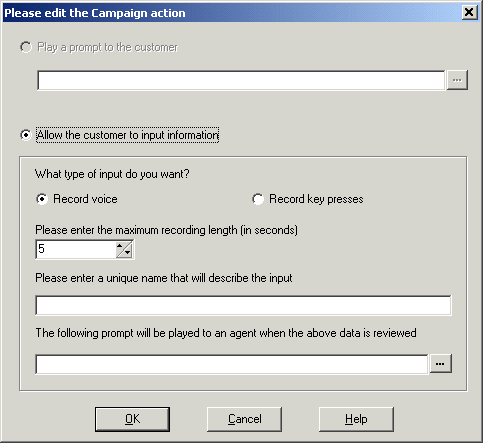
Play a prompt to the customer: Select this option to play a prompt to the caller. Click to specify which prompt to play or create a new prompt in the Wave Editor window. See Using the Wave Editor.
Allow the customer to input information: Select this option to if you want the action to record the caller's response.
What type of input do you want: This option sets whether the voicemail server should Record voice or Record key presses.
Please enter the maximum recording length or Please enter the maximum number of key presses: The field name depends on the type of input chosen. The time specified in seconds sets the maximum length of recording or the maximum number of key presses to record before the next action.
Please enter a unique name that will describe the input: A name to associate with the action. The name should be a single word with no spaces.
The following prompt will be played to an agent when the above data is reviewed: Use this option to select or create a prompt that is played to agents before hearing the caller's response. Click to specify which prompt to play or create a new prompt in the Wave Editor window. See Using the Wave Editor.