

AVAYA DOCUMENTATION CENTER
Find answers to your technical questions and learn how to use our products
Administering IP Office Voicemail Pro
Set User Variable Action
This action sets a user variable to a particular value. Other call flows can then use Test User Variable actions to check whether the variable has a particular value.
Procedure
- Click the
 Condition Actions icon.
 - Select
 Set User Variable.
 - Select the Specific tab. Set the options as required.
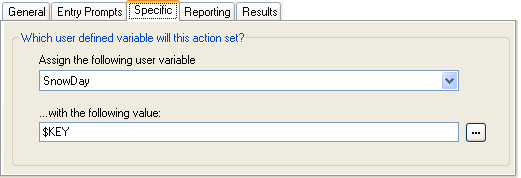
Setting
Description
Assign the following user variable
The name for the existing user variable.
With the following value
The value of the variable. Type the required value directly or use the browse button to select the text that should be used including using the value of a call variable .
Result
This action has the following result which can be connected to a further action:
Next: Connect the Set User Variable action to another action (for example, a Disconnect action), whose entry prompt confirms to the caller that the value has been set. In some situations, such as where the Set User Variable action is accessed by a user dialing a short code, if the user hangs up too quickly the variable may not be set. Having a following action with a confirmation message encourages users not to hang up too quickly.
Use the Complete Sequence option in the Start action so that the variable is set even if the caller hangs up prior to hearing any confirmation.