

AVAYA DOCUMENTATION CENTER
Find answers to your technical questions and learn how to use our products
Administering IP Office Voicemail Pro
Leave Mail Action
The Leave Mail action assists the caller to leave a message in the start point's mailbox or in a specified mailbox.
About this task
Procedure
- Click the
 Mailbox Actions icon.
 - Select
 Leave Mail.
 - Select the Specific tab. Set the options as required.
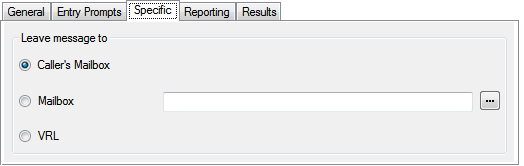
Setting
Description
Caller's Mailbox
If selected, the mailbox matching the start point of the call is used.
Mailbox
Select or enter the name of the target mailbox. If ? is entered, voicemail will prompt callers to enter the mailbox number required.
Clicking on the … browse button allows selection of the target mailbox from a drop-down list of either Start point or module, System defined variables or Mailbox. The options vary depending on the action and field.
VRL
If selected, specifies that the message should be transferred to the a voice recording library (VRL) application supported by the telephone system. See Voice Recording Library .
Result
The Leave Mail action has Success and Failure results. The use of these depends on which mailbox mode the voicemail server is using.
IP Office mode: Callers in the mailbox follow the results depending on whether they press 0 before or after the leave a message tone respectively. This overrides the mailbox user's Voicemail Reception setting set in the IP Office configuration.
Intuity mode: The results are not used. Callers pressing 0 follow the mailbox user's Voicemail Reception setting set in the IP Office configuration.
Example
For examples of the action in a call flow, see: