

AVAYA DOCUMENTATION CENTER
Find answers to your technical questions and learn how to use our products
Administering IP Office Voicemail Pro
eMail Action
This action sends a recording to a specific email address.
Procedure
- Click the
 Miscellaneous Actions icon.
 - Select
 eMail.
 - Select the Specific tab. Set the options as required.
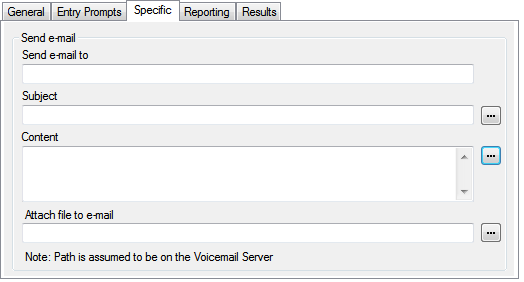
Setting
Description
Send e-mail to
Enter the e-mail address of the recipient.
Subject
The subject line for the e-mail.
Content
The text to be placed in the e-mail.
Attach file to e-mail
Select the recorded file to be attached to the e-mail.
If just $ is entered, then the action will use the recording collected by a preceding Leave Mail action or Voice Question action.
Result
This action has the following result which can be connected to a further action:
Next: Route the call to a following action in the call flow. This connection can be followed even after the caller has hung up if the Start action option Complete Sequence has been selected.