

AVAYA DOCUMENTATION CENTER
Find answers to your technical questions and learn how to use our products
Administering IP Office Voicemail Pro
Database Execute Action
The Database Execute action performs an SQL query on a database opened by the preceding Database Open action. An SQL query that is generated by the Database Execute action does not support spaces in the field or table names.
Procedure
- Click the
 Database Actions icon.
 - Select
 Database Execute.
 - Select the Specific tab. The SQL Wizard window opens. Use the wizard to construct the SQL query.
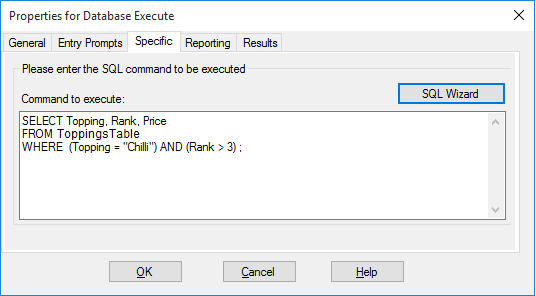
Any data included in the query must match the data type (number, integer or text) of the field that the query runs on. Values being used to query a text field should be enclosed by quotation marks. This applies whether using query values entered directly or using Voicemail Pro variables. For example, if using
$KEYas a query value, for a text field query you must enter"$KEY".
Result
This action has the following results which can be connected to further actions:
Success: The action has been successful and has returned a set of records from the database.
Failure: The action has not returned any data.
Example
For examples of the action in a call flow, see Retrieving Data From the Database and Entering Details in to the Database.