

AVAYA DOCUMENTATION CENTER
Find answers to your technical questions and learn how to use our products
Administering IP Office Voicemail Pro
Alphanumeric Collection Action
This action lets callers input text and numeric values directly from the telephone keypad. When completed, the entry is stored in the call variable $KEY which can be used by following actions. For an example, see Example Call Flow.
The action is designed on the assumption that the telephone uses the ITU standard alphabet markings as shown below.
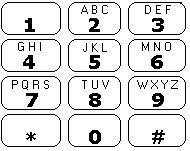
Users enter data by pressing the key marked with the character required. For keys with multiple markings, several key presses are required. For example, to enter C the user must press the 2 key three times. After each key press, the associated letter or number is spoken.
To move on to entering the next character, the user should press whichever other key is marked with the required character or first press # if the required character is on the key just used.
Controls available are:
# - Accept last character and begin entry of next character if the required character is on the key just used.
*1 - Hear the characters entered so far.
*2 - Delete all characters entered so far.
*3 - Delete the last character entered.
*# - Accept the set of characters entered and go to next call flow action.
Procedure
- Click the
 Telephony Actions icon.
 - Select
 Alphanumeric Collection.
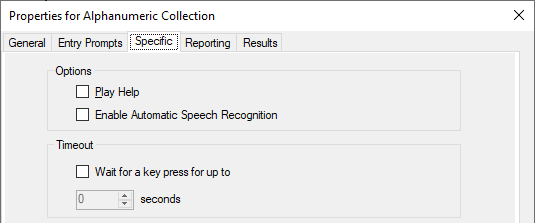
 - Select the Specific tab. Set the options as required.
Setting
Description
Play Help
Select this option if you want instruction to be given to the caller explaining how to enter information.
Wait for a key press for up to
If selected, an adjustable timeout result is provided for the action.
Enable Automatic Speech Recognition
This option is available on subscription systems that have Google speech enabled (see Enabling Google Speech TTS). When selected, the system will attempt to use speech recognition to detect the caller's responses to prompts.
Result
This action has the following results which can be connected to further actions:
Timeout: This result connection is available if Wait for a key press for up to is selected.
DTMF Data: This result connection is used if the caller enters some data and then presses *#.
No DTMF Data: This result connection is used if the caller presses *# without entering any data.