

AVAYA DOCUMENTATION CENTER
Find answers to your technical questions and learn how to use our products
Administering IP Office Voicemail Pro
Voice Question Action
This action creates a play list where the caller hears a sequence of prompts and the responses are recorded. When a caller completes the play list, a single file containing the recorded responses is created. That file can then be placed into a specified mailbox or passed to an eMail action.
Procedure
- Click the
 Mailbox Actions icon.
 - Select
 Voice Question.
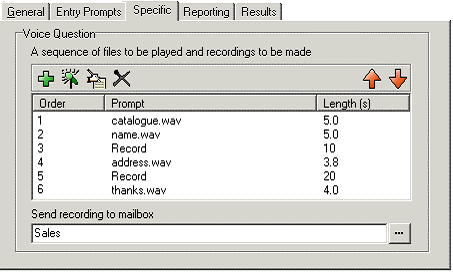
 - In the Specific tab questions need to be added to the play list.
Setting
Description
Voice Question
This list contains the sequence of questions prompts and settings for recording responses. Use the icons to create and adjust the list:
 Add a Prompt: Opens the editor to record a prompt for a question.
 Record a Response. Specify a name and a length in seconds for the recorded response.
 Edit: Edit the settings of the currently highlighted item.
- Delete: Deletes the currently highlighted item from the play list. This does not delete the actual prompt file.
 Shuffle: Move the currently highlighted item within the play list.
Send recording to mailbox
Specify a mailbox into which the recorded file of the responses should be stored. If no mailbox is specified the file can be passed to an eMail action.
Result
This action has the following result which can be connected to a further action:
Next: Route the call to a following action in the call flow. This connection can be followed even after the caller has hung up if the Start action option Complete Sequence has been selected.