

AVAYA DOCUMENTATION CENTER
Find answers to your technical questions and learn how to use our products
Administering IP Office Voicemail Pro
Alarm Set Action
This action creates an alarm call to be played to a specified extension at a specified time. By default the alarm call displays ALARM and plays the prompt "This is an alarm call, please hang up".
You can adjust the length of the alarm call ringing and repeat the alarm call if it is not responded to. The number of repeats can be adjusted. An optional dialing digit is required to clear the alarm.
For administrators, the alarm calls that have been setup can be viewed and edited. You can also manually add additional alarms. See Alarms.
The Voicemail Pro is limited to 2 outgoing alarm calls at the same time (subject to voicemail port availability). Any additional alarm calls are delayed until the existing alarm calls have been completed.
Procedure
- Click the
 Miscellaneous Actions icon.
 - Select
 Alarm Set.
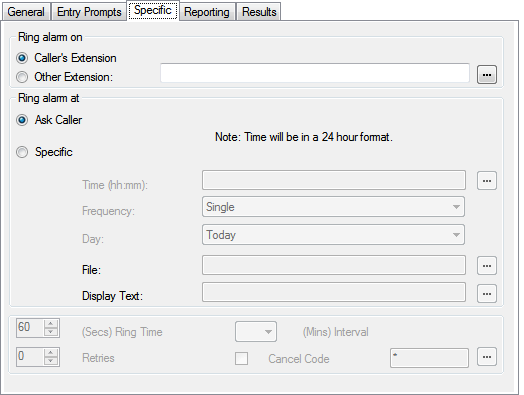
 - Select the Specific tab. Set the options as required.
Setting
Description
Caller's Extension
This option sets the alarm target as the caller's own extension number.
Other Extension
This option assists you to use a specific number for the alarm target or use a call variable that contains the number to use.
Ring alarm at
These options set the time and frequency of the alarm being set.
Ask Caller
The call flow user is asked to dial the required time in 24-hour clock format. This will set a single use alarm for that time.
Specific
You can define a specific alarm time. This lets you to specify a single use or a repeated alarm.
Setting
Description
Time (hh:mm)
Set the alarm time in 24-hour format. A time value can be entered or a call variable can be used. If left blank or if the call variable used is not a valid time value, the call flow user is asked to enter a time the same as if Ask Caller was selected.
Frequency
Sets how often the alarm should occur. The options are Single, Daily or Weekly. A variable with value 1, 2 or 3 respectively can be used.
Day
Useable with Single and Weekly alarms. Set the day for the alarm. The option Today is also available for alarms where the Frequency is set as Single.
File
This field is optional. If a file is specified here it is used for the alarm call. If no file is specified the default alarm message ("This is an alarm call, please hang up") is used.
Display Text
By default the alarm will display "Alarm" on the target if it is an Avaya display telephone. This field can be used to customize the text used.
Ring Time
Default = 60 seconds. Range = 5 to 120 seconds.
This field set the length of ring time used for the alarm call if not answered.
Retries
Default = 0 (Off). Range = 0 to 10.
This field can be used to specify how many times the alarm should be repeated if it is not answered and cleared. When a value other than 0 is selected, the Interval option becomes available to specify the interval between repeats.
Interval
Default = None (Off).
If a number of retires is specified, this option can be used to select the number of minutes between repeated alarm attempts until the alarm is cleared.
Cancel Code
Default = Off.
When off, the alarm is cleared if the alarm call is answered. If on, a dialing code can be specified. If the correct code is not dialed in response to an alarm, the alarm is not cleared and will repeat if retries have been specified.
Cancel Code
Default = *, Range = Up to 4 digits.
This field is used to enter the dialing required to clear the alarm call. The value * will match any dialing. To cancel the alarm, the cancel code must be entered followed by the hash key (#). The file used to play the alarm message must mention the cancel code and the fact that cancel code must be followed by the hash key (#).
Result
This action has the following result which can be connected to a further action:
Next: Route the call to a following action in the call flow. This connection can be followed even after the caller has hung up if the Start action option Complete Sequence has been selected.