

AVAYA DOCUMENTATION CENTER
Find answers to your technical questions and learn how to use our products
Using Avaya Workplace Client for Android, iOS, Mac, and Windows
Conference screen
The following figure shows the components of the Conference screen on Avaya Workplace Client on desktop platforms. You can also see an active conference call.
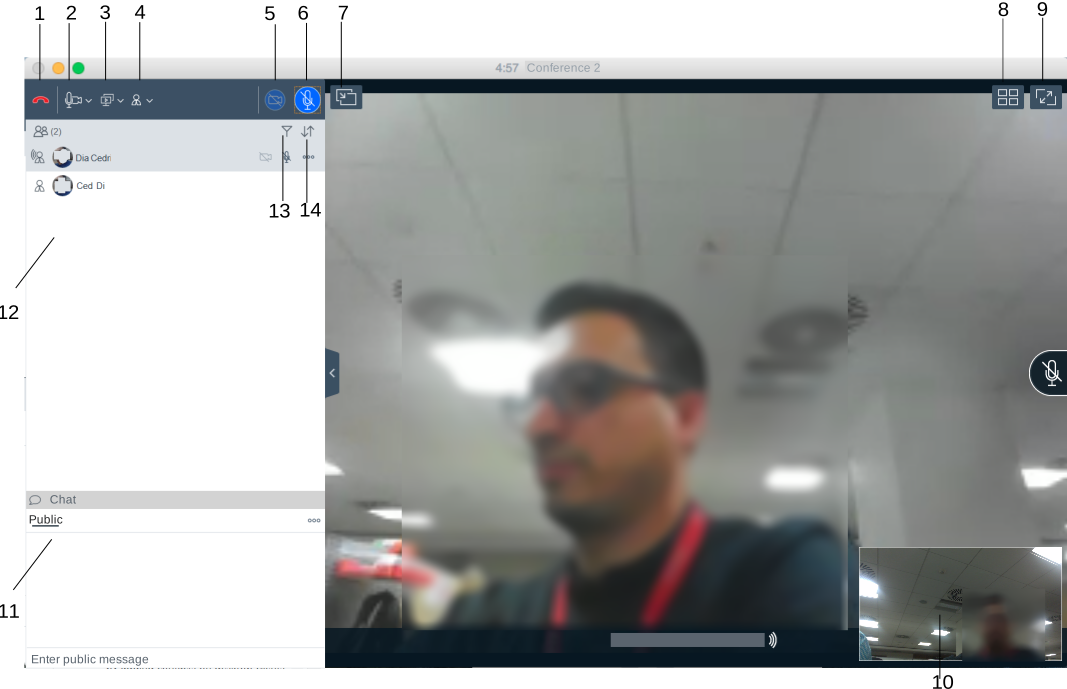
No. |
Name |
Description |
|---|---|---|
1 |
Leave |
Leave the conference. |
2 |
Media |
Check the audio and video links for the conference. You can also mute the microphone and block the video. |
3 |
Present |
Share a portion of the screen, the entire desktop, applications, or virtual whiteboards. |
4 |
Meeting Controls |
Access the moderator controls functionality. For example, to add someone to a call, extend a call, and view call statistics. |
5 |
Video Call |
Block or unblock your video on the conference. When the video is blocked, the button is blue. |
6 |
Audio Call |
Mute or unmute your audio for the call. When the call is muted, the button is blue. The mute icon flashes after the configured timeout period if the microphone mute notification feature is enabled. |
7 |
Share |
Attach or detach the Sharing screen with the Conference screen. |
Link Quality Indicator |
View the link quality indicator that provides an indication of the network quality. |
|
8 |
Layout controls |
Use the Automatic or Fixed layout for the video. Hide or show display names and your self-view. |
9 |
Full screen |
Fit the Web Collaboration interface to the window size. |
10 |
Self-view |
Move self-view to different corners of the screen. |
11 |
Chat |
Send public or private messages during a web collaboration session. |
12 |
View participants |
View the participants in the conference. |
13 |
Filter |
Filter the participants. For example, to view participants that have dropped, view recent talkers, and view participants accessing collaboration. |
14 |
Sort |
Sort the participants alphabetically or according to order of arrival. |