

AVAYA DOCUMENTATION CENTER
Find answers to your technical questions and learn how to use our products
Using Avaya Workplace Client for Android, iOS, Mac, and Windows
Avaya Workplace Client navigation
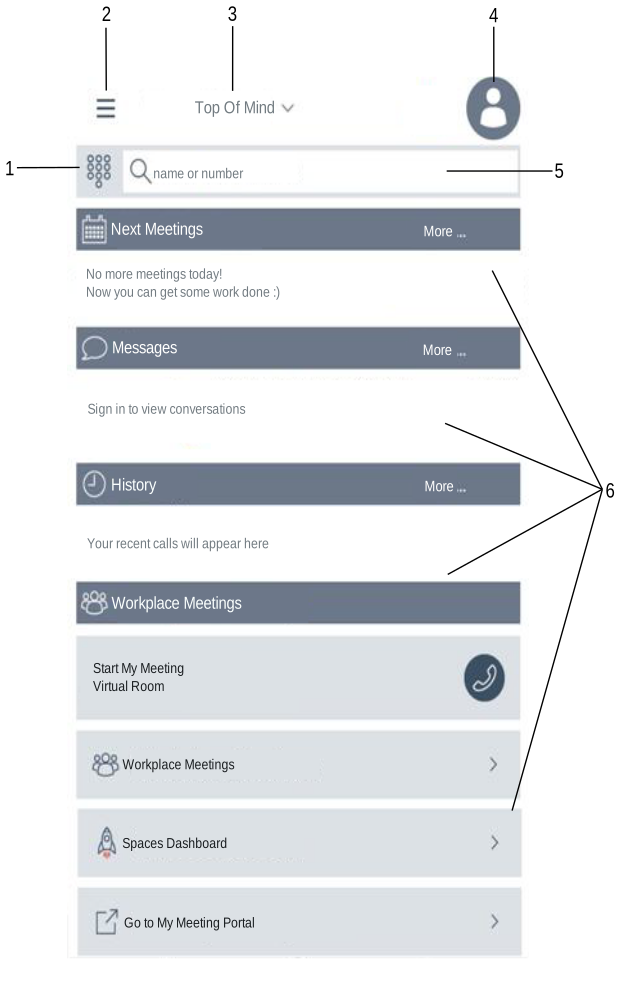
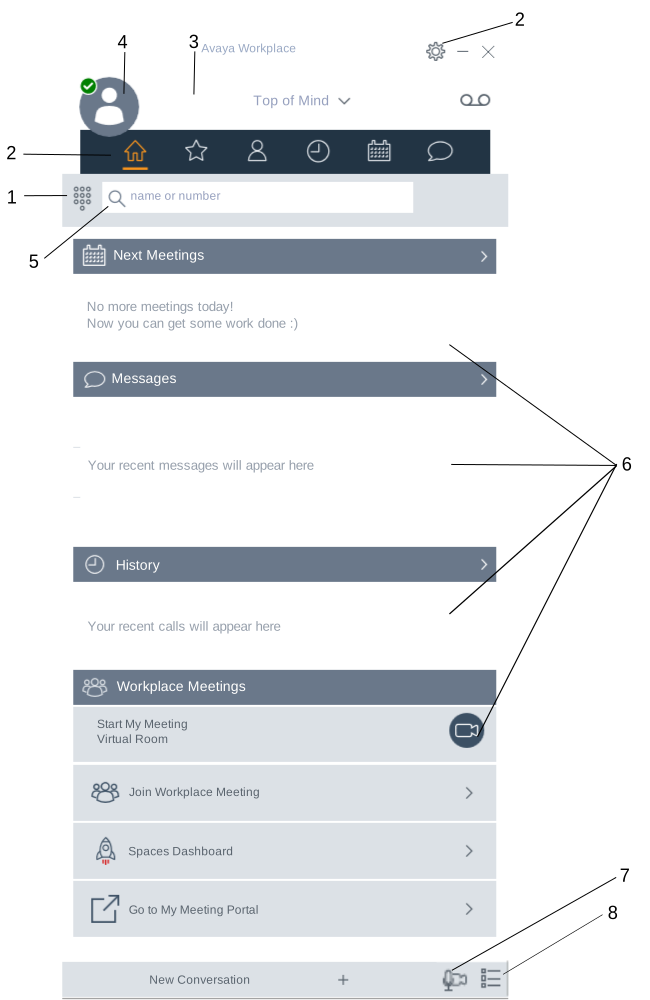
The following images display the Top of Mind screen of Avaya Workplace Client on mobile and desktop devices. You can access the settings of Avaya Workplace Client through the Top of Mind screen. The settings are described in the table following the images.
Mobile client
Desktop client
No. |
Name |
Description |
|---|---|---|
1 |
Dialpad |
Access the dialpad to make an audio or video call. You can detach and reattach the dialpad as required. Detaching and reattaching the dialpad is applicable for Avaya Workplace Client for Windows. |
2 |
Menu |
Access the following screens from the Avaya Workplace Client menu:
You can also manually configure the settings, access your voice mail messages, and exit from the Avaya Workplace Client application. |
3 |
Top of Mind |
Access the settings for configuring the layout of the Top of Mind screen. |
4 |
Presence status indicator |
Access the incoming and outgoing calls settings. You can also configure your presence status and message, and sign out from the Avaya Workplace Client application. |
5 |
Search |
Search for a contact. You can start an instant messaging conversation by typing the messaging address. |
6 |
Next Meetings, Messages, History, and Workplace Meetings |
|
7 |
Manage audio and video devices |
Modify the audio and video settings on desktop clients. On mobile clients, you can modify the audio and video settings from the user preferences settings. |
8 |
Feature Manager |
Open the Feature Manager on desktop clients. Your administrator must configure the call features for your extension. Features might include Automatic Callback, Call Pickup, Call Pickup Directed, Call Pickup Extended, and Call Unpark. On mobile clients, you can view the configured features by going to the Avaya Workplace Client menu. |