AVAYA DOCUMENTATION CENTER
Find answers to your technical questions and learn how to use our products
Avaya Device Adapter Snap-in Reference
Setting time zones and DST for endpoints
An Avaya Aura® Call Center Elite administrator configures time zones for endpoints in Session Manager. Based on the phone location, Avaya Aura® Call Center Elite uses the time zone for endpoints setting to display the current time on the phone display. Daylight saving time (DST) offset is added if it is applicable for the phone location, and in this case, Device Adapter daylight saving rules should not be configured.
However, if a country has started following DST, use this procedure to set a timezone and DST for endpoints.
- On System Manager, click .
- Click New.
- In the Identity section, do the following:
- In the Name field, enter a descriptive name for the Service Profile.
- In the Description field, enter a description for the Service Profile.
- In the Available Service to Add to this Service Profile list next to the Name of the service, do one of the following:
-
To add the latest version of the service, click the plus + sign.
-
To add an alternate version of the service, click Advanced. In the Add Service-Advanced dialog box, in the Service Version field, select the version, and click Add.
-
- Click Commit.
- On System Manager, click .
- On the Services Profiles tab, do the following:
- In the Profile field, click the required profile.
- In the Service field, click DeviceAdapter.
- In the Media Security area, do the following:
- Select the Override default check box.
- In Effective Value, click the appropriate SRTP level based on the location security requirement.
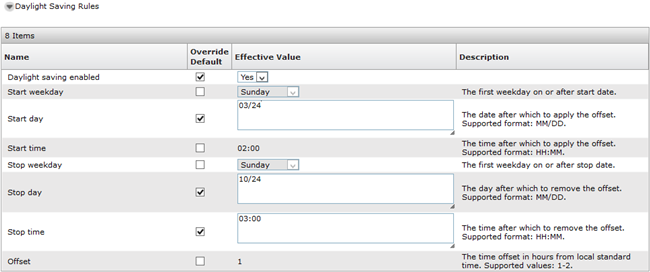
- In the Daylight Saving Rules area, do the following:
- In the Daylight saving enabled field, select the Override default check box.
- In Effective Value, click Yes.
- In the Start weekday, Start day, Start time, Stop weekday, Stop day, Stop time, and Offset fields, select the corresponding Override default check box.
- In Effective Value corresponding to these fields, configure the daylight saving settings that apply to the country the endpoint is located.
- Click Commit.
- On System Manager, click .
- Select the user profile in the list, and then click Edit.
STEP RESULT:The snap-in displays the User Profile page.
- Click the Communication Profile tab and do the following:
- Click Avaya Breeze® Profile.
- In the Services Profile field, select the same service profile name as selected in Step 4.
- Click the Identity tab and do the following:
- In the Time Zone field, click the required time zone.
- Click Commit.
The following is an example of how Device Adapter applies the daylight saving offset time.
In the following screenshot, the Start weekday is set to Sunday, the Start day is set to March 24, and the Start time is set to 2:00 AM.
Device Adapter applies the daylight saving offset time for the endpoint located in the time zone that you specified in the Time Zone field as follows:
-
If this day is March 24, Sunday in the given time zone, Device Adapter applies the daylight saving offset time on this day after 2:00 AM.
-
If March 24, Sunday is already past in the given time zone, Device Adapter applies the daylight saving offset time on the next Sunday.