

AVAYA DOCUMENTATION CENTER
Find answers to your technical questions and learn how to use our products
Avaya Device Adapter Snap-in Reference
Troubleshooting commands
The following is a representative list of supported troubleshooting commands. You require root or sroot privileges to use these commands.
Note:
Device Adapter does not support the CS 1000 tcpdump command for capturing TCP/IP and other packets on the network.
Device Adapter supports only those CS 1000 pcap commands that are mentioned in the following table.
|
Command
|
Description
|
|---|---|
|
dasrvstart status all
|
Displays the current status of all Device Adapter services.
|
|
tpsShow
|
Displays the current Terminal Proxy Server status.
|
|
isetShow
|
Displays the currently connected endpoints.
|
|
isetSecShow
|
Displays DTLS information for the currently connected endpoints.
|
|
electShow
|
Displays the current election status.
|
|
pcapHelp
|
Displays the list of available pcap commands.
|
|
pcapStart
|
Captures the network packets that are sent and received by the network interfaces of the Avaya Breeze® platform. You can use option 3 of the pcapConfig command to specify the network interfaces that you want to monitor.
By default, the captured network packets are stored in the .cap file that is located at:
/var/log/Avaya/services/DeviceAdapter/pcap
Note:
If the /var directory is full, Device Adapter automatically deletes the older files from this directory. However, Device Adapter does not delete certain files that are protected from automatic deletion.
Hence, to ensure that there is enough disk space in the /var directory to store the pcap log files, you might have to manually delete some files from the /var directory.
You can open and analyze the pcap log file by using Wireshark.
|
|
pcapStop
|
Stops capturing the network packets of the network interface.
|
|
pcapStatus
|
Displays the current status of packet capturing. For example, started or stopped.
|
|
pcapRestart
|
Stops and then starts the packet capturing again.
The pcapRestart command uses the most recent pcap log file to capture the network packets.
|
|
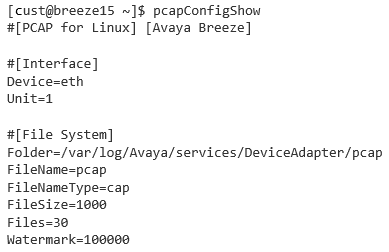
pcapConfigShow
|
Displays the contents of the pcap configuration file.
For example,
 |
|
pcapConfig
|
Use the following numbering options with the pcapConfig command to configure the pcap settings:
|
For a comprehensive list of supported commands, see Avaya Communication Server 1000 Software Input Output Reference — Maintenance (NN43001-711).