

AVAYA DOCUMENTATION CENTER
Find answers to your technical questions and learn how to use our products
Administering Avaya Call Management System
Adding split/skill call profiles using the PC Client
- From the Controller window, navigate to .
STEP RESULT:CMS Supervisor displays the Call Center Administration window.
- In the ACD field, select the ACD on which the new split or skill call profile will be created.
- In the Operations list, select Split/Skill Call Profile Setup.
- Click OK.
STEP RESULT:CMS Supervisor displays the Split/Skill Call Profile Setup window.
- In the Split(s)/Skill(s) field, enter the split or skill numbers or names.
- In the Acceptable service level field, enter the speed of answer objective for the profile.
ADDITIONAL INFORMATION:Acceptable service level represents the maximum number of seconds it should take for a call to be answered. Valid values are 0 to 9999. This value should be no larger than the number of seconds in the intrahour interval that is set on CMS. For example, 1800 for a 30-minute intrahour interval or 3600 for a 60-minute intrahour interval. You must enter a value in this field.
- In the Service Level Increments (seconds) fields, enter a progressively greater number of seconds in each To field. Each field can support values from 0 to 999.
ADDITIONAL INFORMATION:If the unanswered call surpasses the time limit for an increment, it moves on to the next increment. For example, 0 to 5 to 10 to 25 represents 0 to 5 seconds, 6 to 10 seconds, and 11 to 25 seconds.Each of the nine increments can vary in length. For example, 0 to 15, 16 to 20, 21 to 26, 27 to 38, 39 to 43, and so forth.The following example displays how an administrator might set up a call profile:
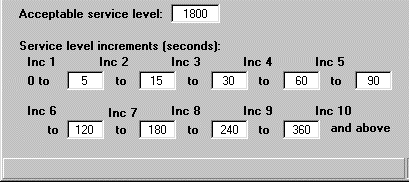 In this example, the Acceptable service level field is set to 1800 seconds to correspond with the intrahour interval on the CMS server.Inc 1 has been set for the range of 0 to 5 seconds. Inc 2 ranges covers 5 to 15 seconds. The other service level increments continue on until Inc 10. This last service level increment is used in this example is for those calls that extend beyond 360 seconds. If a call is not answered after the acceptable service level of 1800 seconds, the call is then tracked in a different CMS database category.
 - Select .
STEP RESULT:The status bar displays a message stating if the operation succeeded or failed.