

AVAYA DOCUMENTATION CENTER
Find answers to your technical questions and learn how to use our products
Administering Avaya Call Management System
Adding tasks to a shortcut
This topic provides the procedure for adding tasks to an existing shortcut.
- From the CMS main menu, press F4 (Keep).
- Select Shortcut and press the Enter key.
STEP RESULT:CMS displays the Shortcut window.
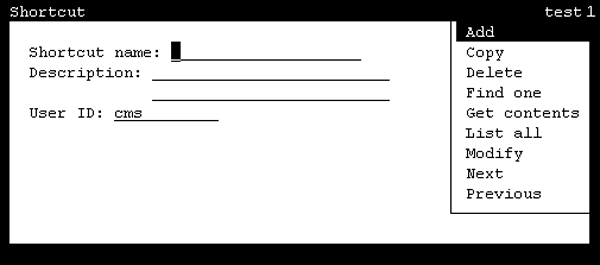
- In the Shortcut name field, enter the name of the shortcut which will have new tasks added.
- Press the Enter key.
STEP RESULT:CMS shifts focus to the action list.
- Highlight Get contents and press the Enter key.
STEP RESULT:CMS displays the Shortcut: Get Contents window.
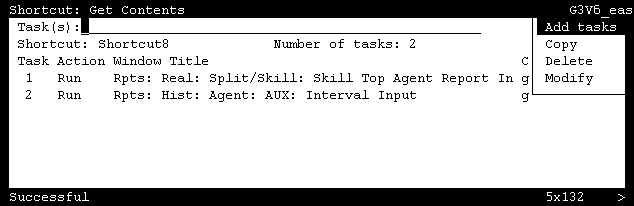
- In the Task(s) field, enter the number of the task that the new task will follow.
ADDITIONAL INFORMATION:To add a task in the second position of the shortcut, enter 1 in the Task(s) field.If you wish the new task to be in the first position, leave the Task(s) field blank.
- Press the Enter key.
STEP RESULT:CMS shifts focus to the action list.
- Highlight Add tasks and press the Enter key.
STEP RESULT:CMS displays the Main Menu.
- On the Main Menu, use the normal menu items to perform the tasks you want to add to the shortcut.
ADDITIONAL INFORMATION:When you have made and validated each action list selection, Entries Stored displays on the status line.
- When you have finished performing tasks for the shortcut, select Stop from the Keep SLK menu.
STEP RESULT:CMS displays a confirmation asking if the changes should be saved.
- Press the Y key and then the Enter key.
STEP RESULT:CMS saves the tasks and displays the Shortcut: Get Contents window.
- Select the Exit SLK to close the Shortcut: Get Contents window.