

AVAYA DOCUMENTATION CENTER
Find answers to your technical questions and learn how to use our products
Administering Avaya Call Management System
Viewing free space allocation information in the Web Client
The information on the Free Space Allocation page is read only. At the top of the page, high-level information is displayed for the current ACD. Near the bottom of the page, a table shows information for all ACDs. You can view the allocation breakdown for a specific ACD.
- Navigate to .
- Use the drop-down list to change the currently-selected ACD.
STEP RESULT:CMS Supervisor displays a high-level view of the total free space and the total allocated space for the selected ACD.
- Use the table near the bottom of the page to view the allocated size and the space used to date for all ACDs.
ADDITIONAL INFORMATION:This table is useful for comparing the space allocation for different ACDs, A Search field is also available to search for specific information.
- Click
 next to an ACD to view a detailed allocation breakdown.
ADDITIONAL INFORMATION:A new window shows the allocated size in Kilobytes for each data item. The following example image shows the breakdown for the dads16 ACD:
next to an ACD to view a detailed allocation breakdown.
ADDITIONAL INFORMATION:A new window shows the allocated size in Kilobytes for each data item. The following example image shows the breakdown for the dads16 ACD: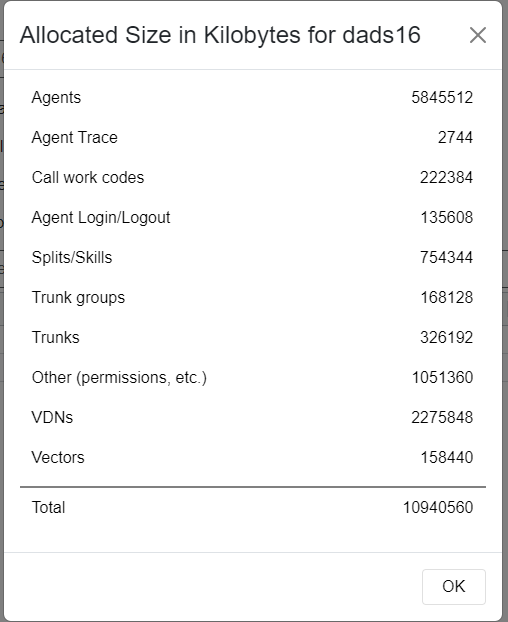
- When you finish reviewing the breakdown, click OK to close the window.