

AVAYA DOCUMENTATION CENTER
Find answers to your technical questions and learn how to use our products
Administering Avaya Call Management System
Modifying shortcut tasks
This topic provides the procedure for editing tasks within a shortcut.
- From the CMS main menu, press F4 (Keep).
- Select Shortcut and press the Enter key.
STEP RESULT:CMS displays the Shortcut window.
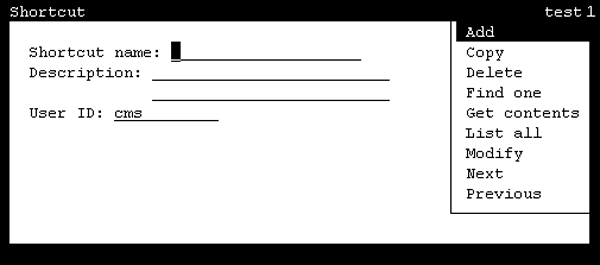
- In the Shortcut name field, enter the name of the shortcut where tasks will be modified.
- Press the Enter key.
STEP RESULT:CMS shifts focus to the action list.
- Highlight Get contents and press the Enter key.
STEP RESULT:CMS displays the Shortcut: Get Contents window.
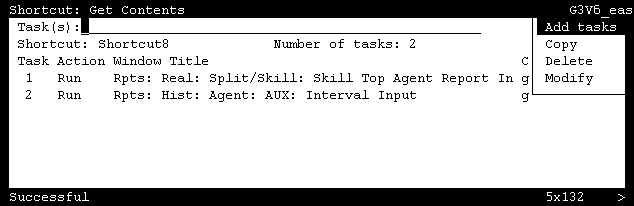
- In the Task(s) field, enter the number of the task to modify and press the Enter key.
STEP RESULT:CMS shifts focus to the action list.
- Highlight Modify and press the Enter key.
STEP RESULT:CMS displays the input window of the specified task.
- Change the input parameters of the window as necessary.
ADDITIONAL INFORMATION:For example, this might include changing the split, agent, or another entity on which a report is based. This can also include making changes to the size and position of the task window.
- When the appropriate information has been entered, press the Enter key.
STEP RESULT:CMS shifts focus to the action list.
- Highlight Modify and press the Enter key.
STEP RESULT:CMS displays a confirmation asking if the changes should be saved.
- Press the Y key and then the Enter key.
STEP RESULT:CMS saves the changes to the task, closes the task window, and displays a Successful message in the status line.
- Select the Exit SLK to close the Shortcut: Get Contents window.