

AVAYA DOCUMENTATION CENTER
Find answers to your technical questions and learn how to use our products
Administering Avaya Call Management System
Copying shortcut tasks
This topic provides the procedure for copying tasks within a shortcut.
- From the CMS main menu, press F4 (Keep).
- Select Shortcut and press the Enter key.
STEP RESULT:CMS displays the Shortcut window.
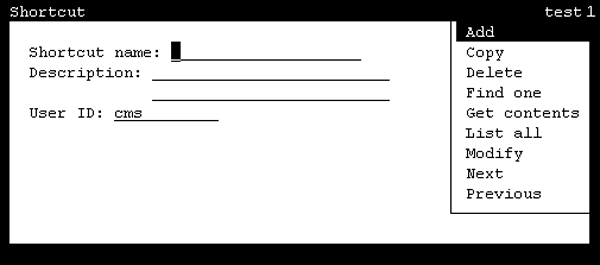
- In the Shortcut name field, enter the name of the shortcut in which a task will be copied.
- Press the Enter key.
STEP RESULT:CMS shifts focus to the action list.
- Highlight Get contents and press the Enter key.
STEP RESULT:CMS displays the Shortcut: Get Contents window.
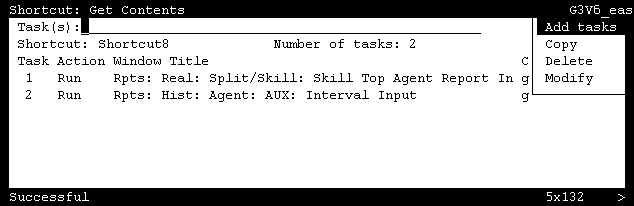
- In the Task(s) field, enter the number of the task to copy and press the Enter key.
STEP RESULT:CMS shifts focus to the action list.
- Highlight Copy and press the Enter key.
STEP RESULT:CMS displays the Shortcut: Get Contents: Copy window.
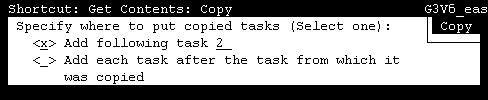
- Place an x in one of the following options:
ADDITIONAL INFORMATION:
-
Add following task - This option will create the task after the task number specified in the field to the right.
-
Add each task after the task from which it was copied - This option will create the task and place it immediately following the original task. If you specified to make a copy of task #1, the copy will be created as task #2. Any other tasks are shifted to a higher number to accommodate this action.
-
- Press the Enter key.
STEP RESULT:CMS shifts focus to the action list.
- Press the Enter key again.
STEP RESULT:CMS copies the original task, creates the new task, closes the Shortcut: Get Contents: Copy window, and displays a Successful message in the status line.If any sort of error occurs, the status line will display Failed and CMS displays an error message describing the nature of the error.
- Select the Exit SLK to close the Shortcut: Get Contents window.